
Help Center
Short, illustrated guides for buying, selling, offers and the community side.
1 Getting started
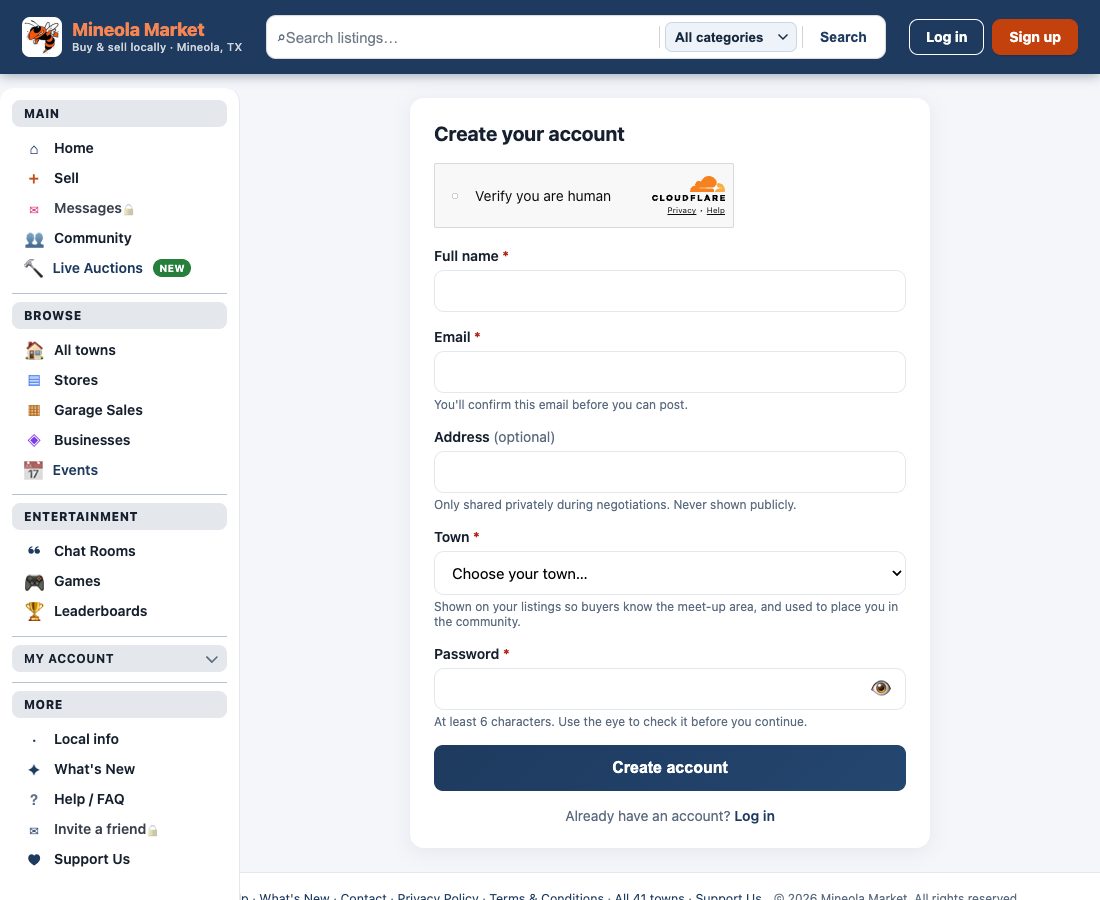
Create your free account
- Click Sign up at the top right of any page.
- Enter your name, email address and a password.
- Pick your town — this is required so the site stays local.
- Click Create account, then open the verification email and click the link.
One account covers both sides of the site: the marketplace at /shop/ and the community forum at /shop/forum.php.
Log in (and reset a forgotten password)
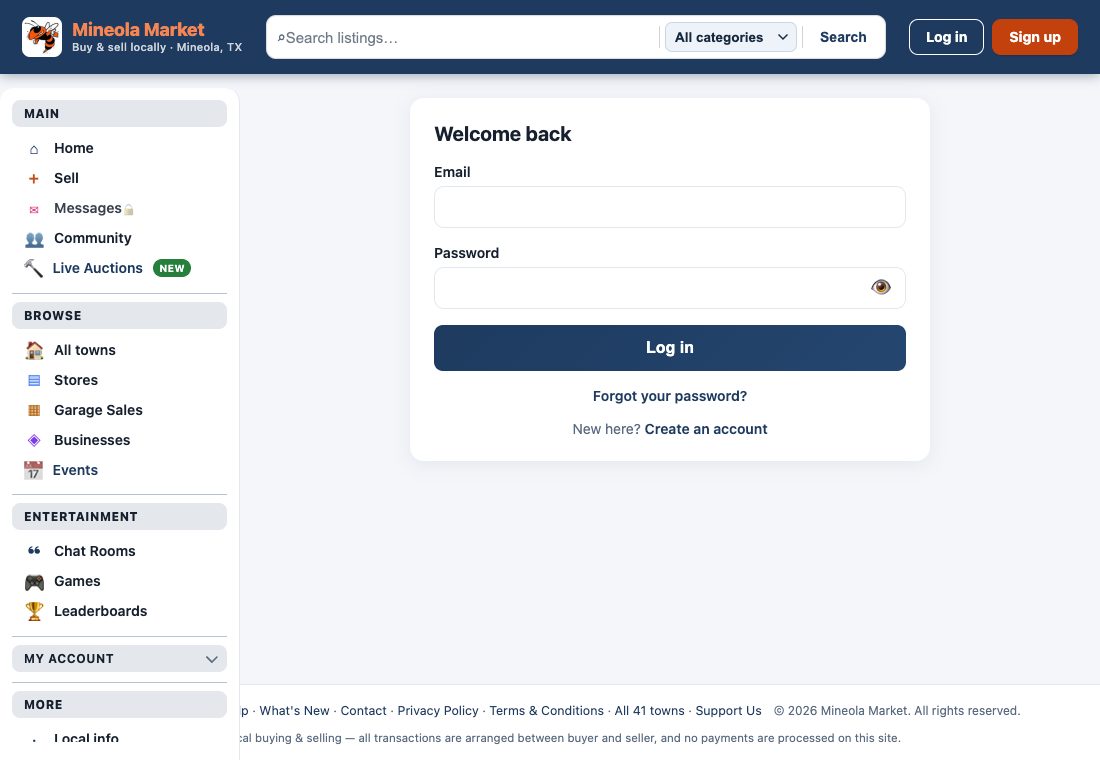
- Click Log in at the top right.
- Enter your email and password, then click Log in.
- Forgotten it? Click Forgot your password? and follow the link that arrives by email.
Why does the site ask for my town?
Because local is the whole point. Mineola is the hub, and every town we cover sits within about a 35-mile radius of it — close enough that a buyer can actually drive over and pick up what they bought.
Your town decides which town page your listing appears on, which members you show up beside in the directory, and how buyers near you find you. A listing with no town cannot be placed anywhere in the local structure, which is why it is required.
Towns outside that radius are not part of the market. The full explanation, and the list of towns grouped by county, is on Our Local Area.
How many items can I post in a day?
Posting is free, but capped so the market stays real rather than a wall of one seller's stock.
- New accounts: up to 5 listings a day, with a short gap between each one.
- Established accounts (7 days old and email verified): up to 20 a day.
If you hit the cap you will be told to try again later — it is not an error and nothing is broken. The limits ease automatically as your account ages.
2 Buying
Find something to buy
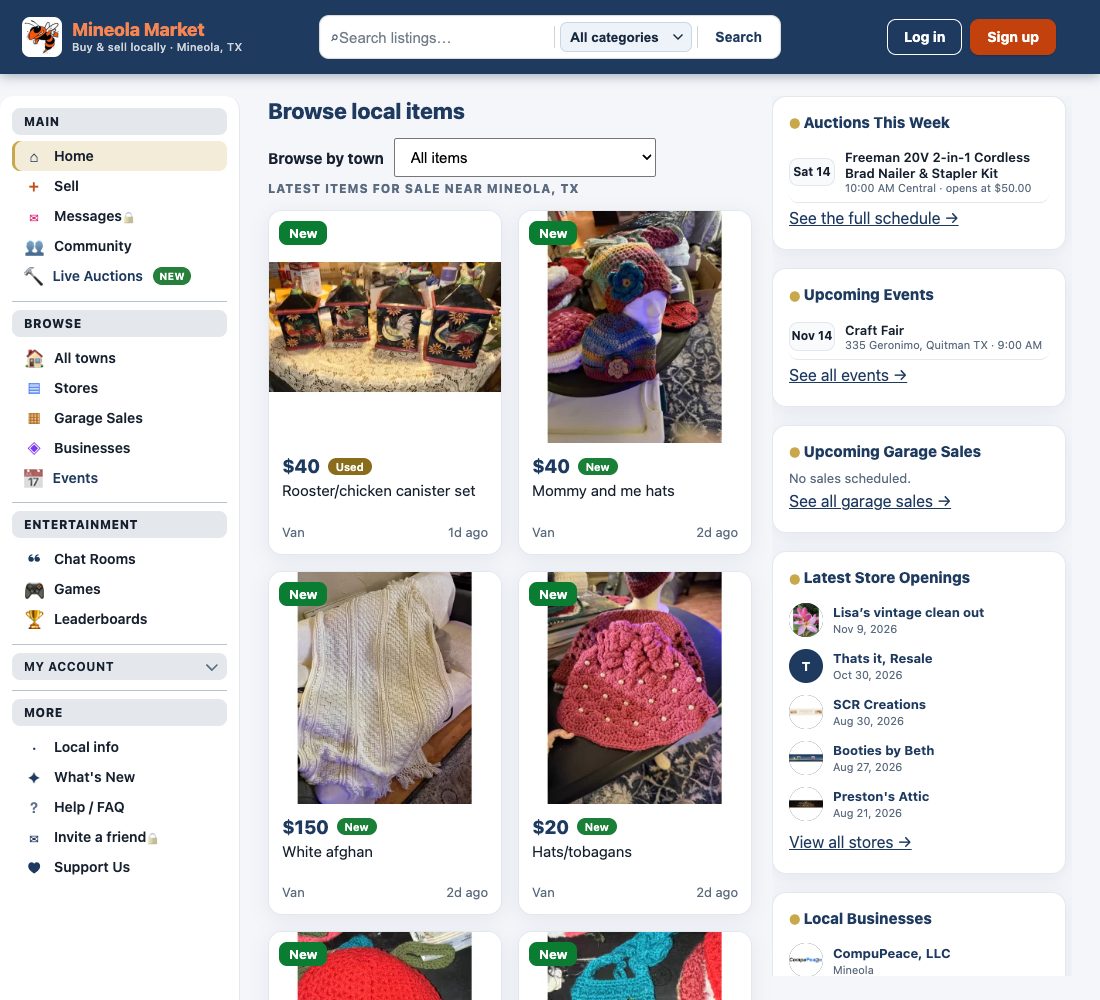
- Type a keyword in the search box at the top, or pick a category.
- Each card shows the price, condition, town and how long ago it was posted.
- Click a card to open the full listing with all its photos.
What you see on a listing
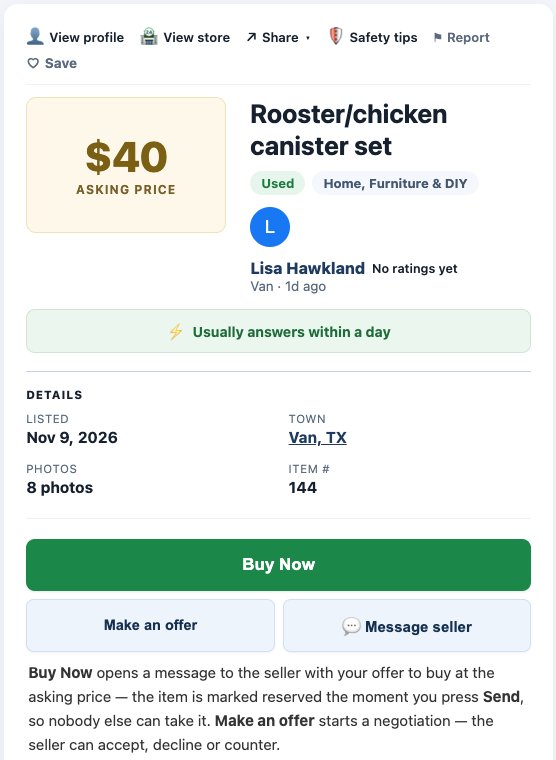
Under the title you'll find the seller's photo and name — click it to open their profile — plus their town, how long ago it was posted, and a badge showing how quickly they usually answer.
Underneath are the buttons that matter:
- Buy Now — tells the seller you want it. The item is put on hold (see Offers).
- Make an offer — propose a different price; it starts a negotiation.
- 💬 Message seller — opens the conversation, already filled in with “Is this still available?”.
Message a seller
- On the listing, click 💬 Message seller. The box is already filled in with “Is this still available?” — change it or just send it.
- Your message and the seller's replies appear in the same thread. New messages arrive on their own — you don't have to refresh the page.
- Come back any time through My Messages at the top of the page.
Keep payment and pickup arrangements inside the message thread so you both have a record. Never send money, gift cards or bank details to someone you haven't met.
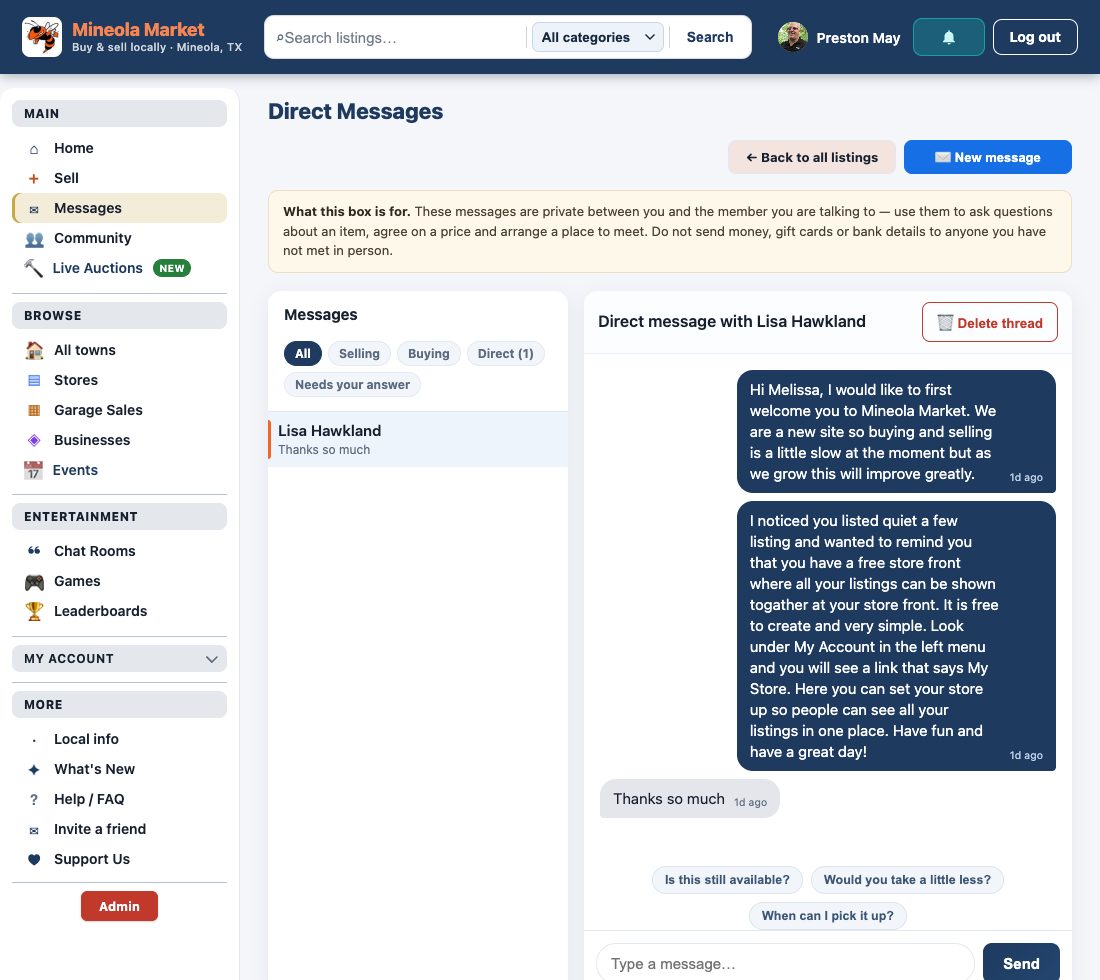
Quick replies — one tap instead of typing
Above the message box there are a few ready-made answers. Tap one and the words drop into the box — you can change them before you send, and nothing is sent until you press Send.
- As a buyer: “Is this still available?” · “Would you take a little less?” · “When can I pick it up?”
- As a seller: “Yes, it's still available.” · “Sorry, it's already sold.” · “When would you like to pick it up?”
They're there so a reply takes one tap on a phone — the usual reason a sale goes quiet is that nobody wanted to type a full sentence.
Save an item to look at later
Tap the heart on any listing card, or the Save button on the listing page. The item goes to Saved Items in the sidebar, under My Account.
Saving is private — the seller is not told. It is simply a shortlist: things you are thinking about, kept in one place instead of lost in the grid.
Save a search and get emailed when something matches
- Run a search — a keyword, a category, a town, or a combination.
- Choose Save this search on the results.
- It appears under Saved Searches in the sidebar.
From then on you get an email when new items match that search — useful for things that do not come up often, like a specific tool or a size of furniture. You can remove a saved search at any time from the same page.
3 Offers & “reserved”
Buy Now or Make an offer — which one?
- Buy Now — you're saying yes to the asking price. The item is reserved for you as soon as you send your first message.
- Make an offer — you're proposing a different price. Nothing is reserved until the seller accepts.
- 💬 Message seller — just a question, no commitment.
All three open the same conversation, so whatever you choose you end up talking to the seller in one place.
Make an offer on an item
- Open the listing and click Make an offer.
- Type the amount you'd like to pay — it has to be at or below the asking price.
- Add an optional note (“can collect Saturday”) and click Send offer.
Your offer appears as a card in the conversation, marked Waiting for a reply. That card is where everything happens — the seller's answer and any counter-offer show up on it.
Changed your mind? Press Withdraw offer on the card.
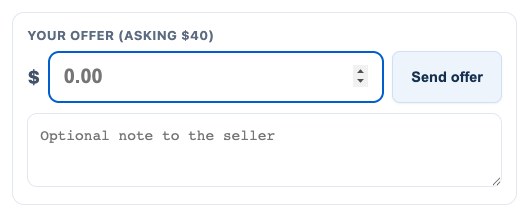
Seller: accept, counter or decline an offer
When someone offers on your item, the offer arrives as a card in your conversation. It also shows up in Messages → Needs your answer, so you can see at a glance who is waiting on you.
The card has three buttons:
- Accept — you agree at their price. The item becomes reserved, and every other live offer is declined automatically.
- Counter — send back a different price without leaving the chat.
- Decline — the item stays listed and the buyer is told.
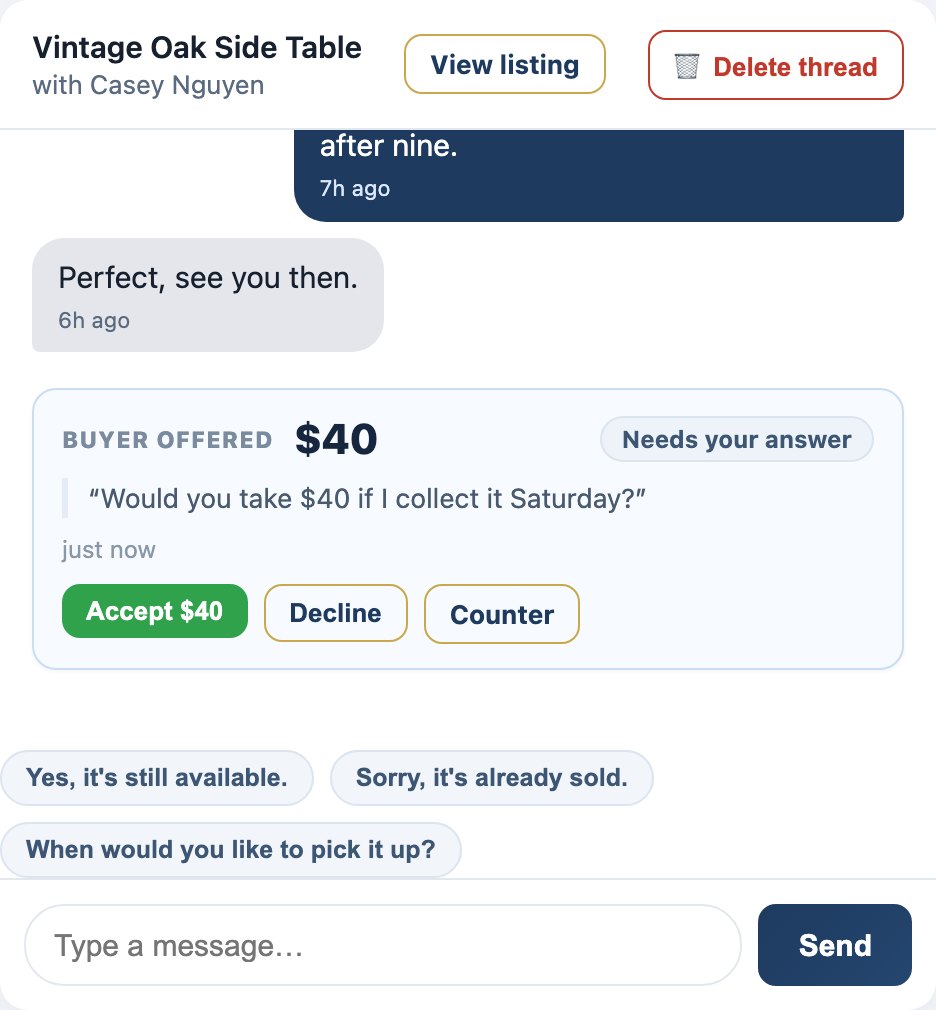
Buyer: answering a counter-offer
If the seller counters, the same card turns into Needs your answer with the new price and two buttons:
- Accept $60 — you agree at the seller's price and the item is reserved for you.
- Decline — you're not interested at that price. The seller is told and the item stays listed.
You don't need to go back to the listing — everything happens in the conversation.
How long does an offer last?
An offer stays open for seven days. After that the card reads Expired, the buttons disappear and nobody is left waiting on a dead conversation.
An unanswered offer also shows how long it has been waiting (“Waiting for a reply · 2 days”), so you can tell a slow reply from a lost one. Either side can simply make a new offer.
What “reserved” means — and marking it sold
When a buyer clicks Buy Now — or when you accept an offer — the item becomes reserved. It comes out of the browse pages so nobody else claims it, but it is not sold yet.
Your listing keeps showing the asking price; the price you actually agreed is recorded on the offer and shown on both the offer card and your listing page (“Reserved · agreed at $45”).
To finish the sale, open the conversation and press Mark as sold to … in the green bar at the top. Everyone else who asked about the item is told it has gone.

4 Selling
List an item for sale
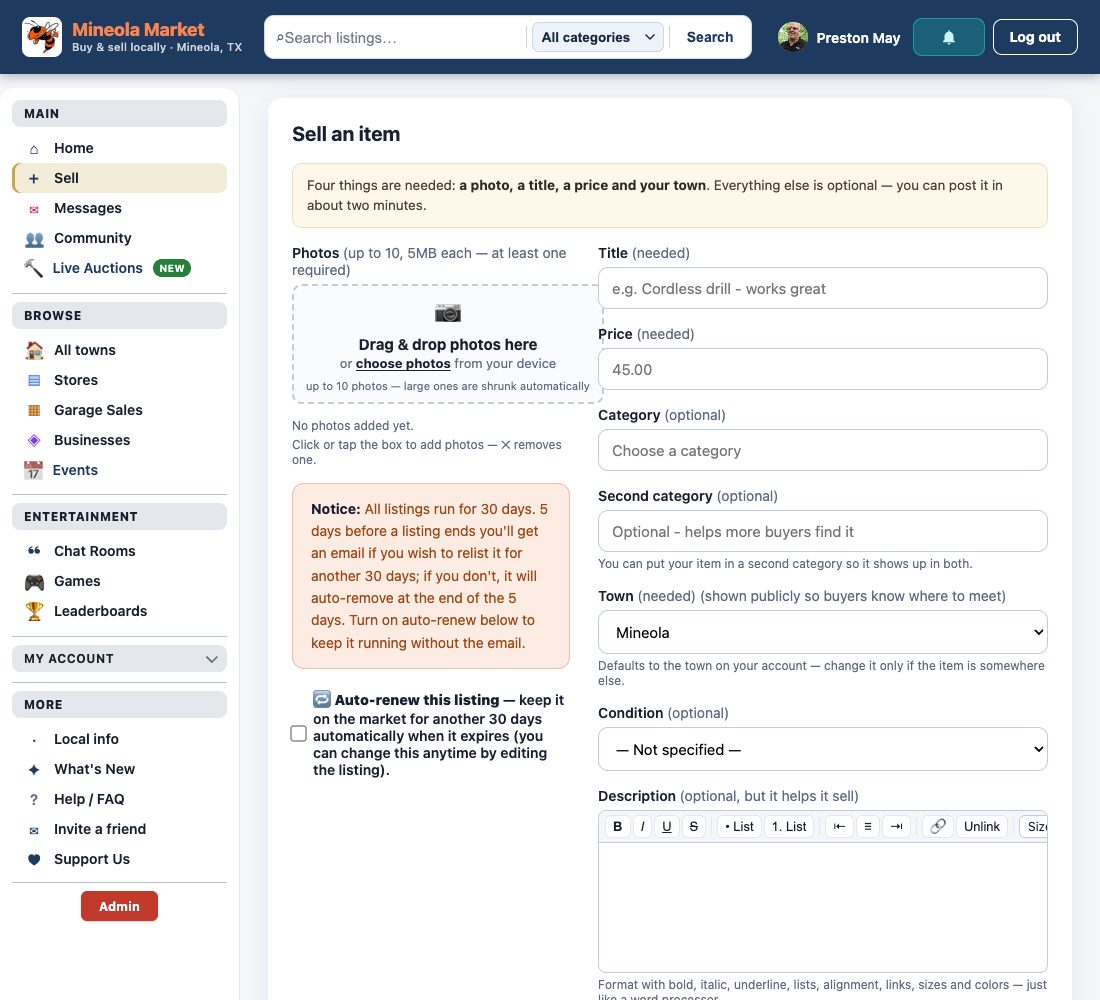
- Click Sell an item in the header.
- Add a clear title and describe the condition honestly.
- Set your price, category and town.
- Add up to 10 photos — the first one becomes the thumbnail.
- Click Post listing. It appears immediately.
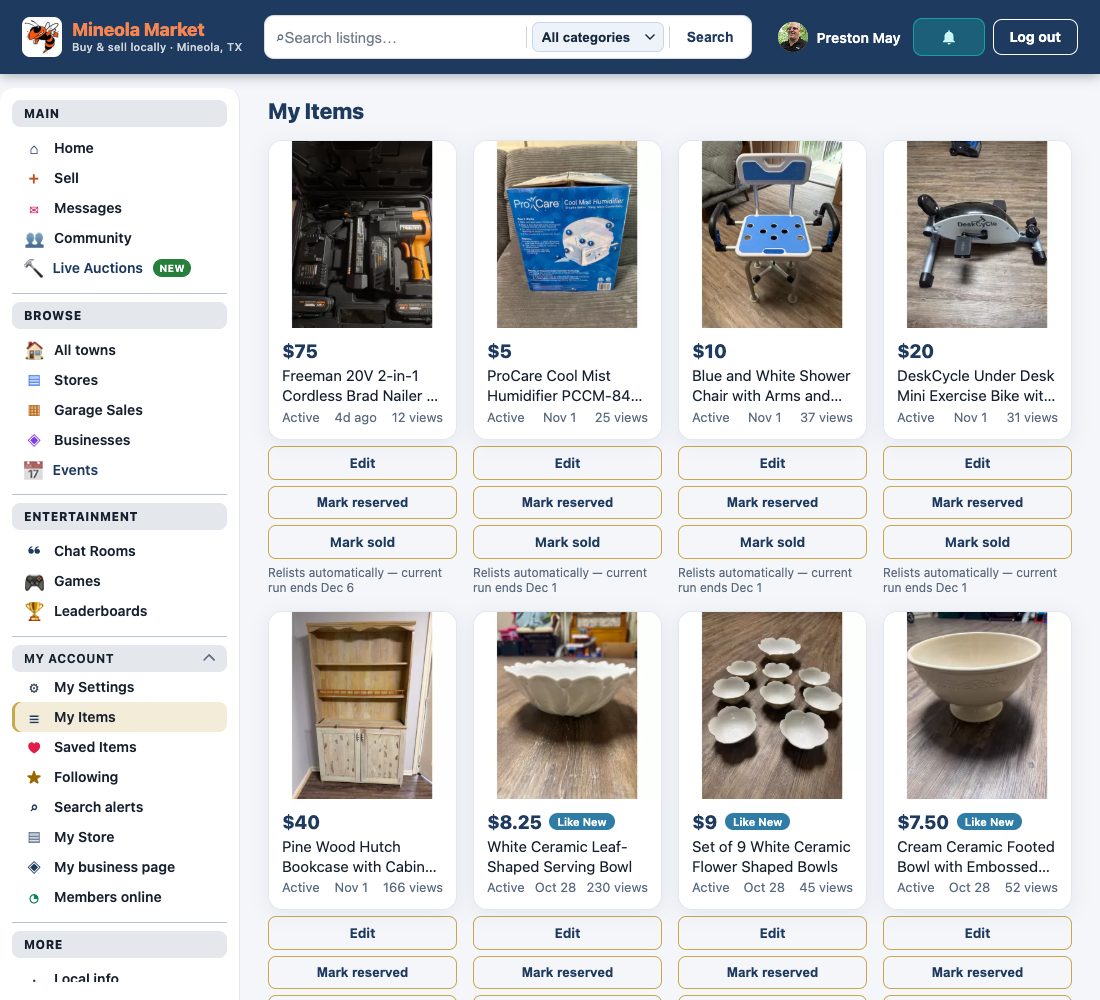
Manage your listings: reserved, sold, relist
My Items lists everything you're selling, with a status of Active, Reserved or Sold and a count of how many people have opened each item.
- Mark reserved — hold it for a buyer without closing the sale.
- Mark sold — closes it and asks who bought it (so you can both leave a rating).
- Relist — puts a reserved or sold item back on the market.
Views and the answer-time badge
Every listing counts how many times it has been opened. Only you see the number — it's on the listing page and on each card in My Items.
Buyers also see “Usually answers within an hour” on every listing, so they know what to expect before messaging.
5 Your profile
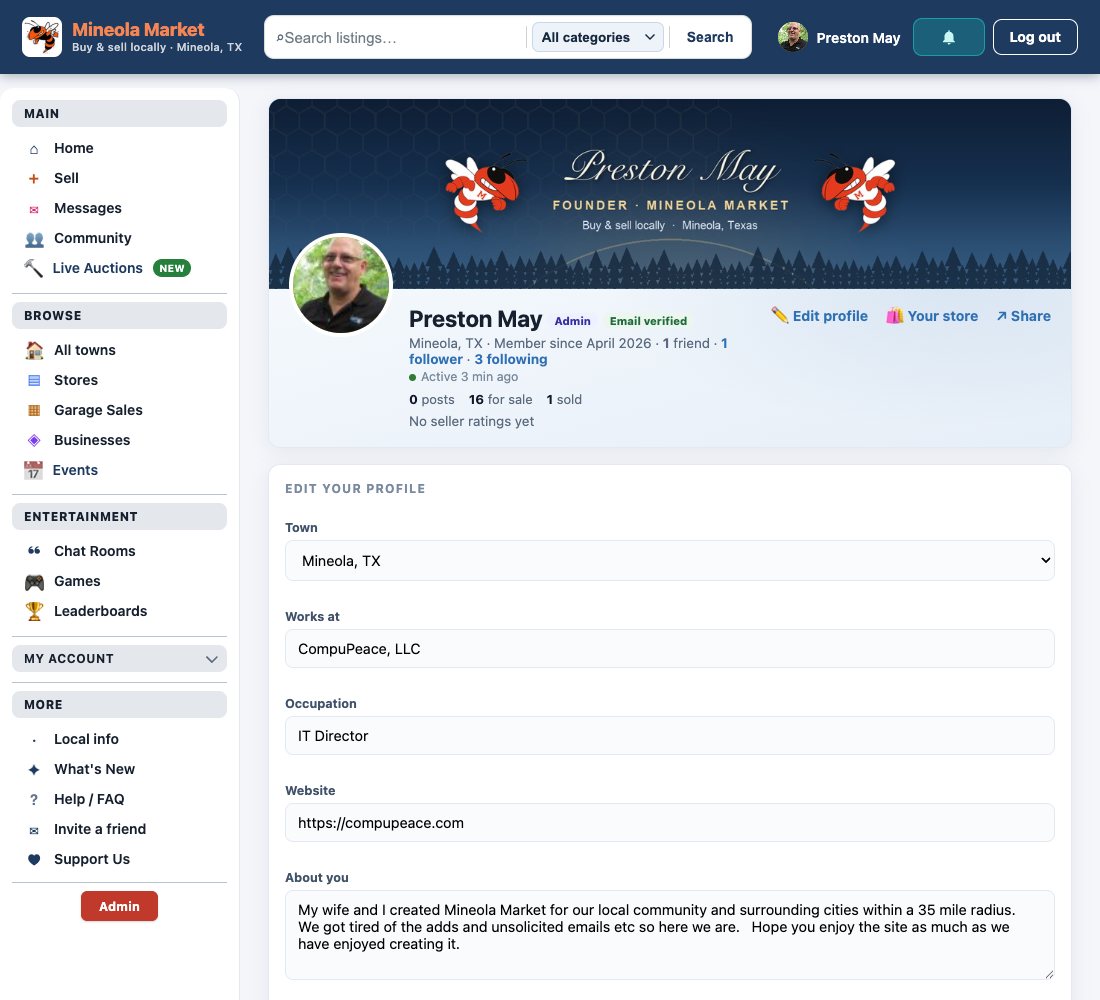
Set up your profile
- Open your profile from your name in the header, then click Edit profile.
- Pick your town, add a line about yourself and “works at” if you like.
- Upload a profile photo and a cover photo.
- Drag the cover preview up or down to choose which part shows.
- Click Save profile.
No cover yet? A sunrise banner is used until you upload your own.
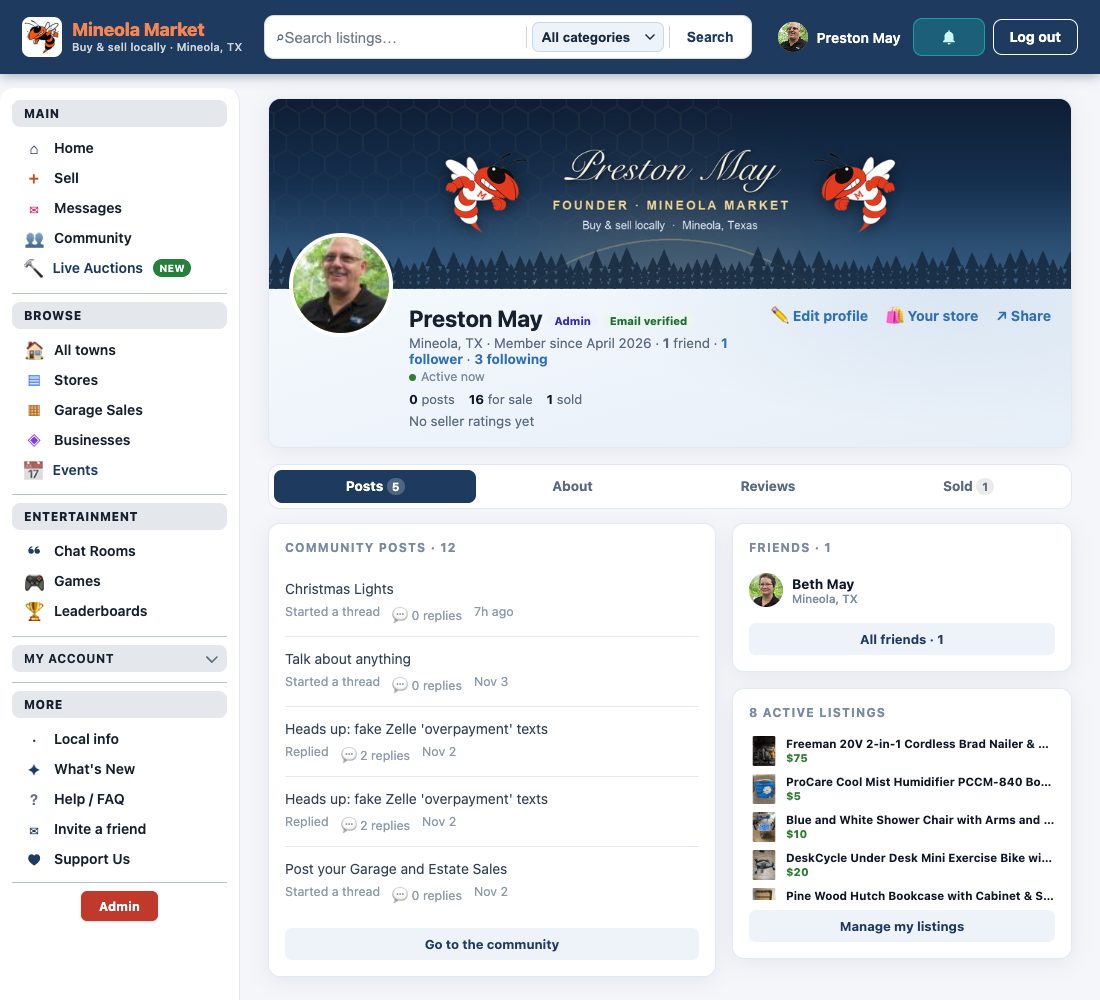
What other people see on your profile
- Your photo, cover, town and how long you've been a member.
- When you were last active, plus counts of posts, items for sale and sales.
- Feedback from buyers — the star ratings and comments people left after a sale.
- Your recent posts, your active listings and your friends — with buttons to add, follow, message or block you.
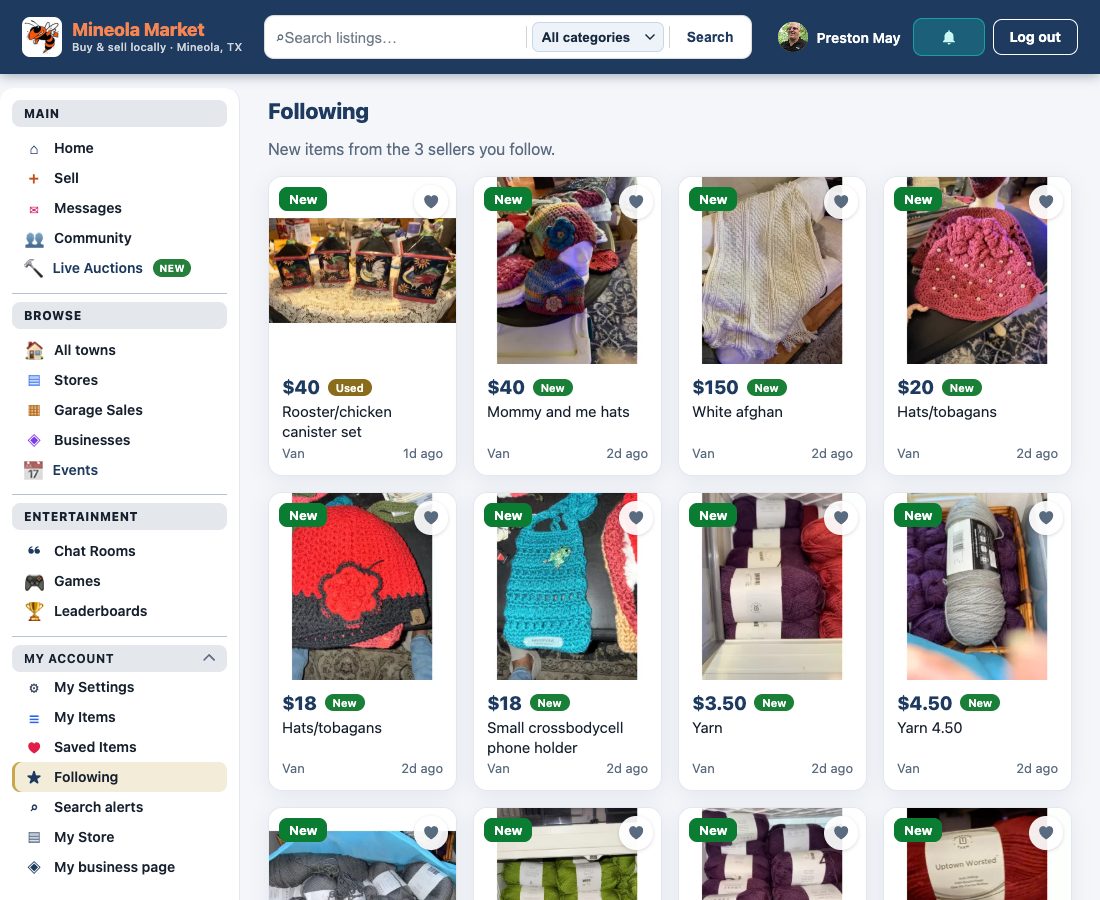
Followers and who you follow
The follower counts under your name are links. Click either one to see the list of people, with a Follow button on each row so you can follow them back.
6 Community
Start or join a group
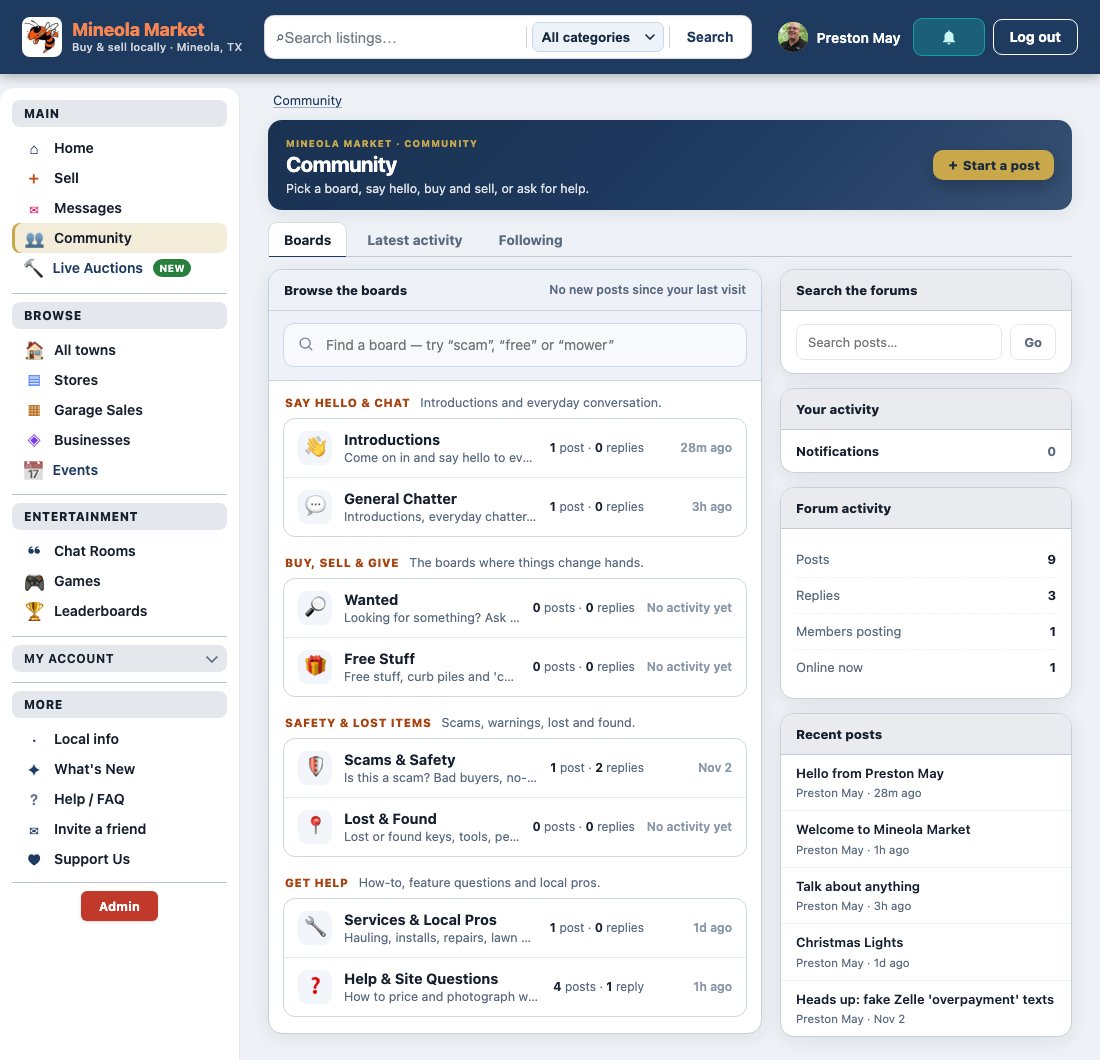
Groups sits in the left column between Businesses and Events. A board belongs to the whole town; a group belongs to the people in it.
- Open Groups and press Start a group.
- Give it a name, write two or three sentences in About this group, and add a photo — something that shows what the group is about.
- Choose who can join: Open to everyone (anyone reads it and joins in one click) or Invite only (the posts stay private; people ask to join and you approve).
- Each group has its own wall for posts and photos, comments, an About panel and a member list down the side.
- Members can invite people by name from the group page. Owners can approve requests, make someone a moderator, remove a member, edit the group, or delete it.
- On an invite-only group, outsiders see the name, the photo, the description and how many members there are — never the posts or the member names.
Post in the community
- Click Community in the header and pick a board.
- Click New thread, give it a title, then type your post and add a photo if you want.
- Click Post. Other members can react and reply.
- Every post carries a Comment button — the reply box only opens when you press it, and one box is open at a time. If you close it halfway through, what you typed is still there next time.
- Quote, beside Like and Share, puts the post or comment you are answering above your reply with the member's name on it, so a long thread stays readable. Quoting a comment answers that comment; quoting the main post starts a fresh reply.
- Attach a listing on your own thread opens a search box over every active or reserved item on the market, not just your own. Each post shows Listed by the seller's name, up to three listings fit in one post, and the seller is told their item was mentioned.
Every board lists its newest threads first, and the right-hand rail shows the latest activity across all of them.
Add and manage friends
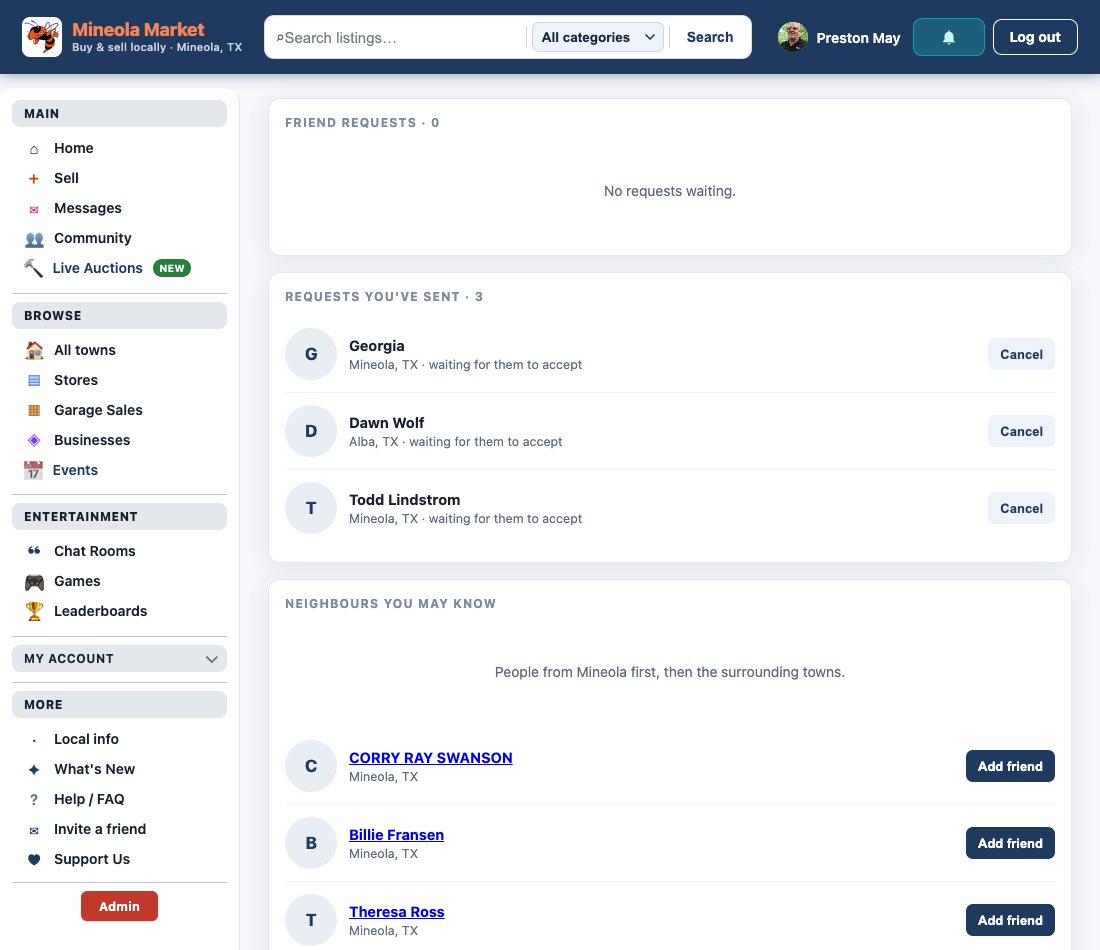
- Open someone's profile and click Add friend.
- They see the request under Friends and can accept.
- Their posts and their listings both appear on their profile, and you can message them from there.
Browse members by town
The Town directory groups every member by the town they chose, with counts per town. Search by name, or filter to one town.
Notifications
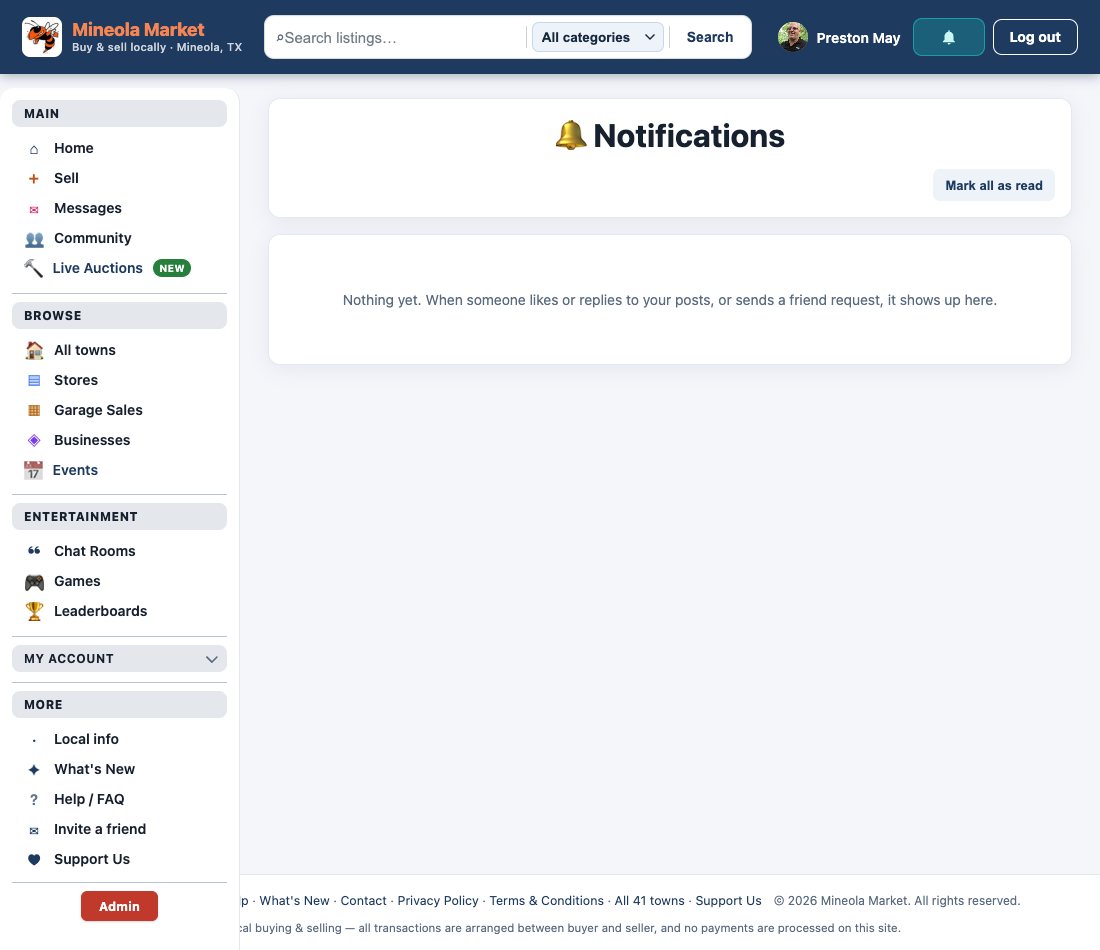
The bell at the top shows a count when someone likes your post, comments, follows you or asks to be friends. Click it to see what happened since you last looked.
Find a thread again
Every board lists its newest threads first. The search box under the boards searches every board at once.
The right-hand rail shows Latest activity — what has moved most recently across all the boards — with Recent posts underneath it.
Chat rooms
Chat rooms are live text rooms for members — a place to talk in real time rather than in a comment thread.
- Click Chat Rooms in the sidebar.
- Join an open room, or create your own and invite people into it.
- Use the 📦 button to share a listing straight into the room you are in.
Each room shows its rules the first time you join. A moderator can remove someone who breaks them, and a removed member cannot rejoin that room.
Play the games and see the leaderboards
The arcade holds short browser games — free for members, nothing to install.
- Every score you post is saved, but only your best score keeps a place on the board.
- Ties go to whoever got that score first.
- Open Games → Leaderboards to see every board on one page.
7 Stores & garage sales
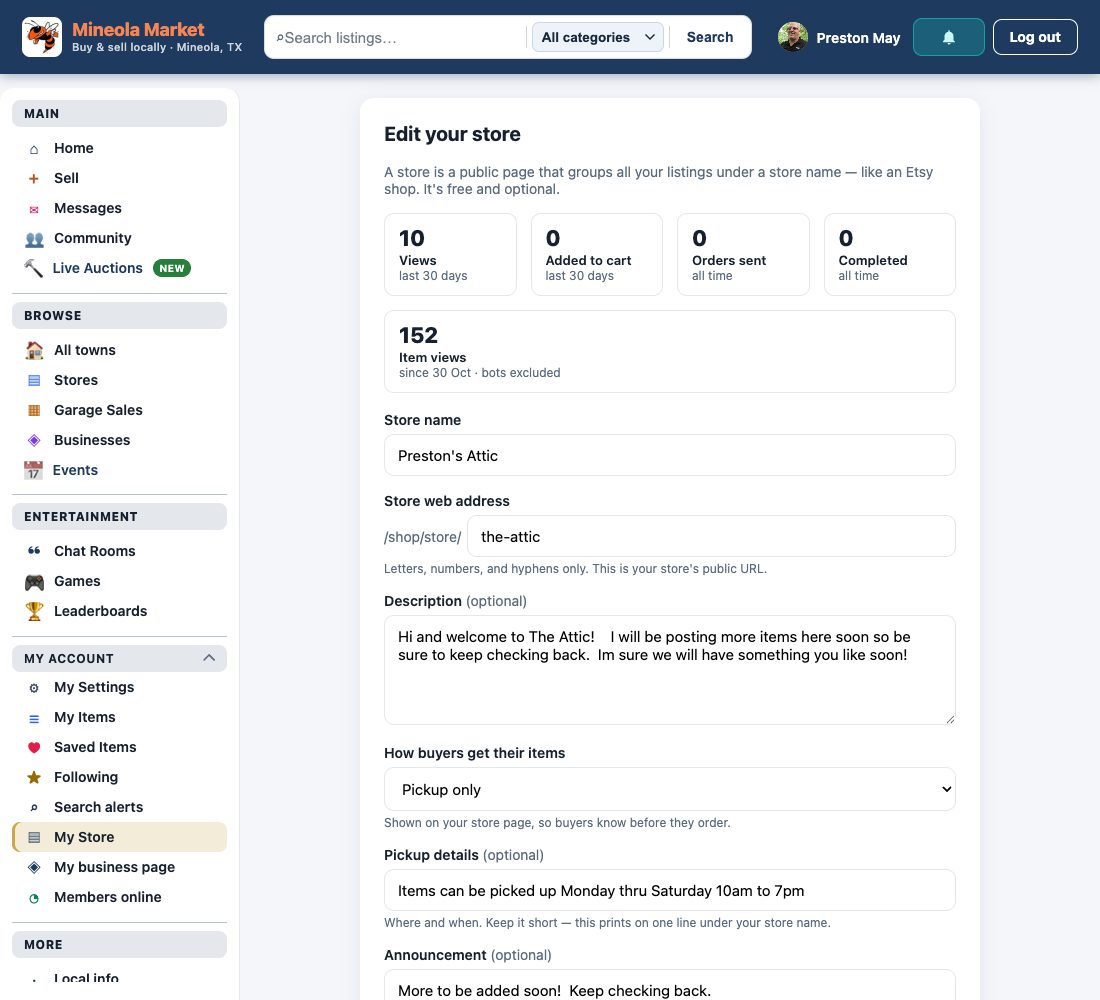
Open your own store
- Go to My Store.
- Choose a store name and web address, add a description and a banner.
- Save — your storefront now shows all your active listings.
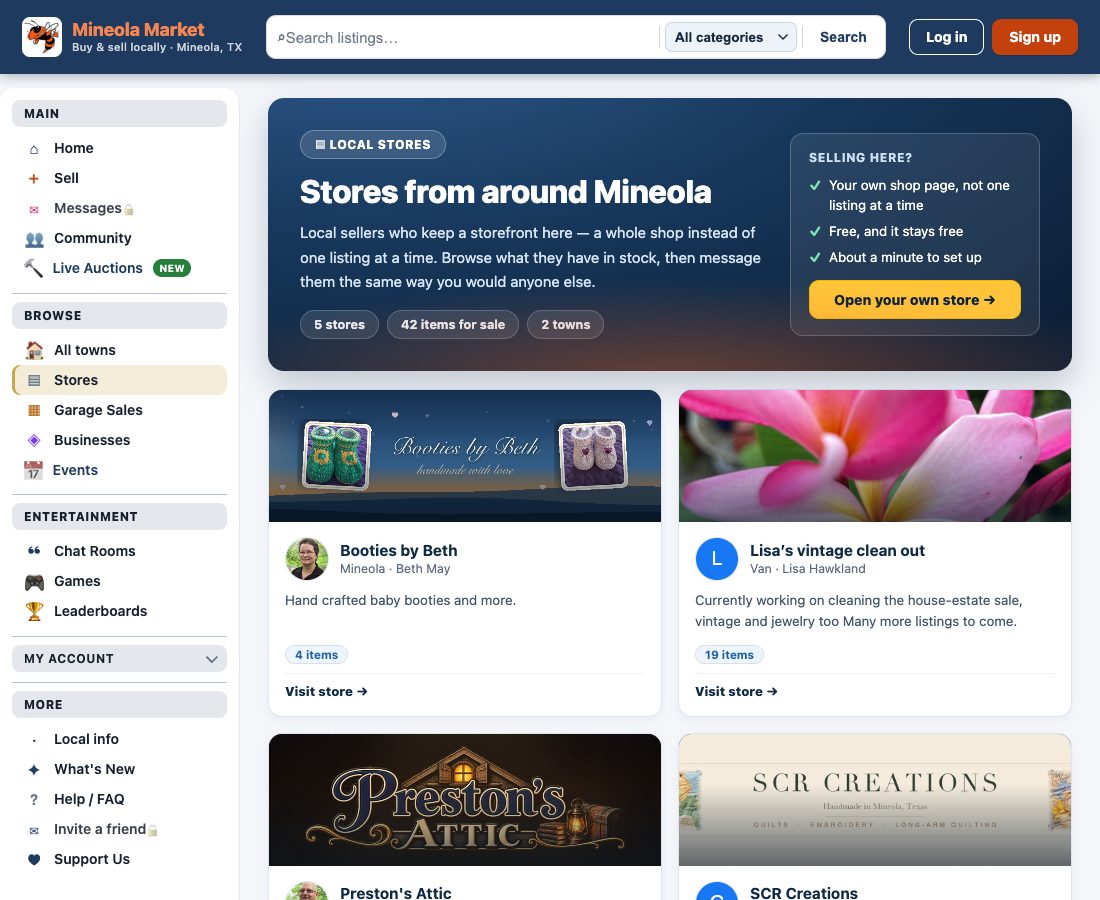
Find a seller's store
Click Stores to browse every storefront, or open a member's profile — if they have a store there's a Visit store link.
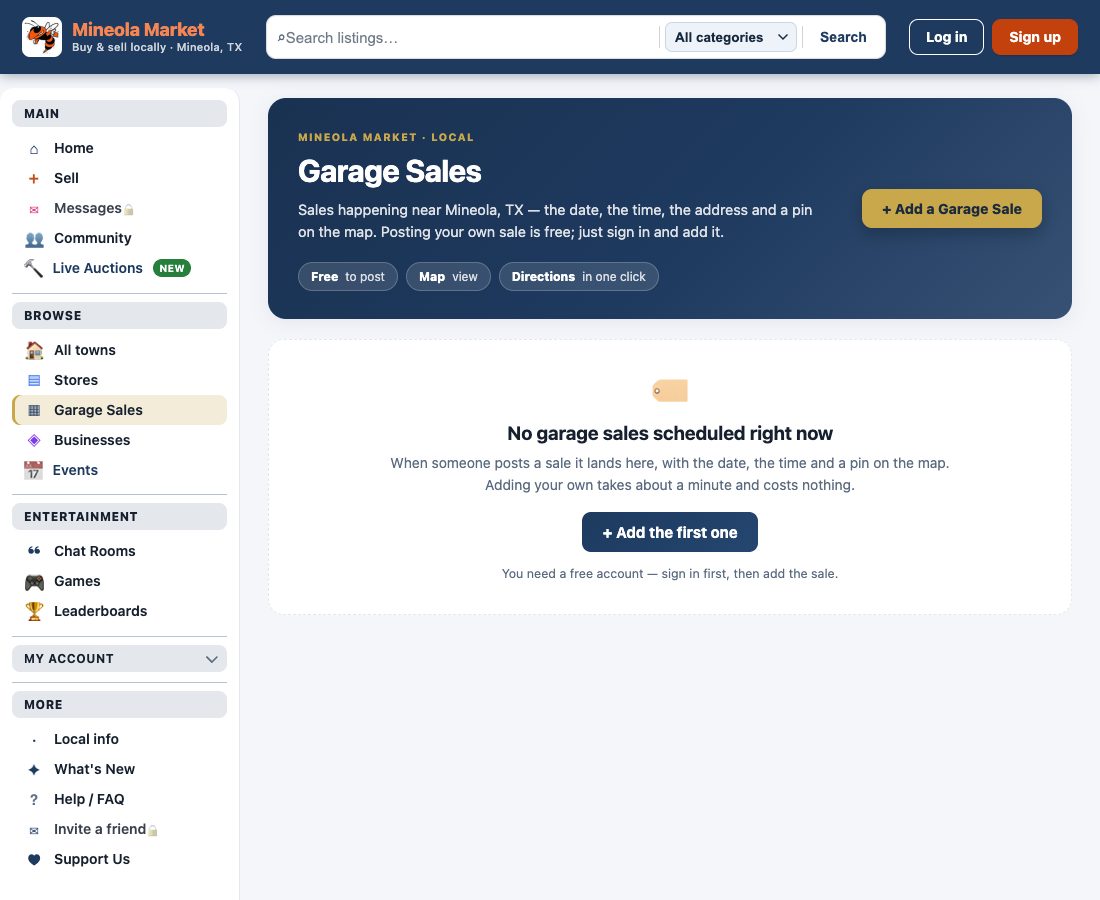
List a garage sale
- Click Garage Sales, then List your garage sale.
- Add the dates, times, address and a few photos.
- Your sale appears in the list and on the Garage Sale Map.
Plan a route around several garage sales
Garage Sale Map in the sidebar plots every sale that is on today. Each pin opens with Details, and Directions hands that one address to your maps app.
When more than one sale is on, Route all stops builds a single driving route through them, so a Saturday morning becomes one loop instead of guesswork.
Posting a sale puts it on the map automatically — dates, times, address and a few photos are all it needs.
8 Live auctions
What Live Auctions are
Live Auctions are the one part of the market where an item sells at a set time instead of at a price. One item is on the block at a time, in a one-hour slot.
- Auctions run Monday to Saturday, 9 AM to 9 PM Central.
- One auction every hour — never two running at once.
- Anyone can watch. Bidding needs a free account.
The Live Auctions page lists the next seven days. The schedule shows every hour, including the ones that are still open to book.
Bid on an auction
- Open Live Auctions and click an item, or click the live item on the market home page.
- The first bid must be at least the starting price.
- After that every bid must beat the current bid by the smallest amount the bid box shows. You can bid higher than that — any amount above the minimum is accepted.
- Click Bid. The page keeps itself up to date, so you see a new bid without reloading.
You cannot bid on your own item, and once you are the highest bidder you cannot raise your own bid.
If someone outbids you we email you, and the browser tab shows • Outbid so you spot it even from another tab.
How the clock works
An auction booked for 2 PM closes at 2:55 PM, not 3:00. If someone bids in those last five minutes the close moves five minutes further, so nobody can win by waiting for the buzzer. It never runs past 2:59 PM — that is what keeps the next hour's auction starting on time.
The room counts down to the real close, and the close time moves on screen if a late bid extends it.
Book an hour and sell something
- Open Live Auctions and click Schedule an auction (or Book an hour).
- Pick a free hour, Monday to Saturday.
- Add the item: a title, one photo (a photo is required), a short description and your starting price.
- Publish. The hour is held from that moment.
Put in the lowest price you would take. If only one person bids, that is what it sells for.
One item per auction, one photo, and up to three auctions a day per member. Booking is free.
When the bell rings
The highest bidder when the clock runs out wins the item. The winner and the seller each get an email, and a message thread opens between them to arrange payment and pickup.
Money changes hands directly between buyer and seller, the same as any listing on the market. The site does not take payment or a cut.
My item didn't sell
If nobody bids, the hour simply ends — nothing is owed and nothing is charged. Your auctions page then offers three choices:
- Run it again in another hour — pick a new slot; the details and price are filled in for you.
- List it on the market instead — turns the same item into an ordinary listing with a price.
- Leave it closed — the item stays closed and you are not asked again.
Cancel a booked auction
Before it starts, and while nobody has bid, you can cancel it yourself from My auctions. The hour goes back into the schedule for someone else.
Once there is a bid, you cannot cancel it yourself — contact support and we will sort it out.
A canceled booking stays in your list once so you can see what happened. Use Remove to clear it away.
Watch without an account
Anyone can open an auction and watch the bidding. To place a bid, or to book an hour, you need a free account and to be signed in.
The full rules both sides agree to are on The auction terms.
9 Towns, businesses & events
Browse listings by town
Two ways in. The Browse by town dropdown sits beside the heading on the home page — pick a town and you are taken to that town's listings. Or open Towns in the sidebar for the full directory.
The directory shows every town we cover with the number of items for sale in each, plus the county and the distance from Mineola. Towns with nothing listed still have a page — post the first item and you will be the only thing on it.
A town page is simply the market filtered to that town: the same cards, the same sellers, nothing else mixed in.
List your business in the local directory
If you run a real business in the area — a shop, a service, a trade — you can have a page in the Businesses directory, separate from a storefront.
- Open Add | Edit My Business in the sidebar under My Account.
- Add the business name and a short description.
- Add the practical things people look for: phone, contact email, website, address and hours.
- Upload a logo if you have one, then save.
The directory lists businesses by town, so a buyer searching locally finds a phone number rather than a marketplace listing. Your business page is also linked from your profile.
Add an event, or RSVP to one
The Events calendar covers things happening around town — sales, meetups, school and church events, anything the community should know about.
- Open Events in the sidebar.
- Sign in, then click a date on the calendar to add an event.
- Give it a title, date and time, and a line about what it is.
Anyone signed in can mark themselves Going, which shows the organiser roughly how many people to expect. You can remove your own event at any time.
10 Messages, settings & safety
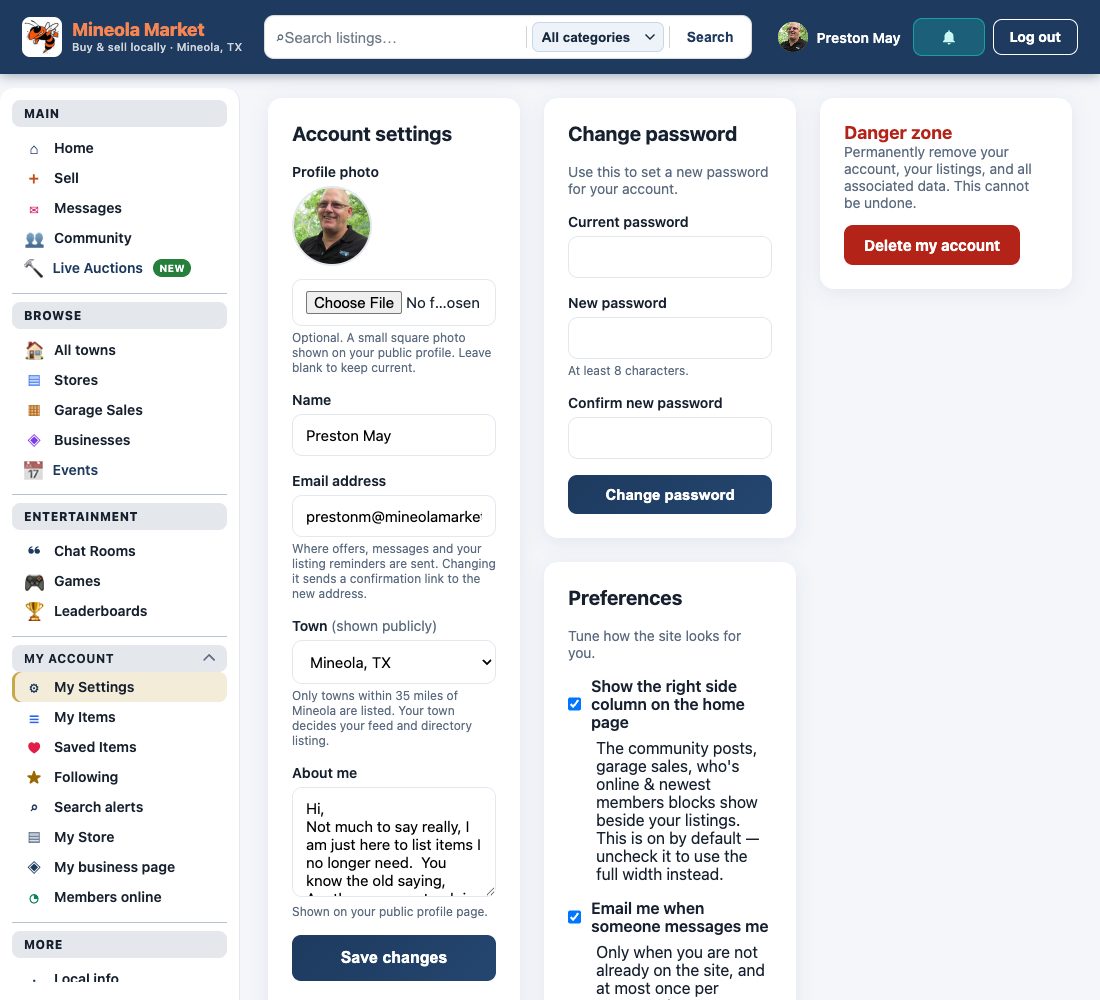
Settings: town, email digest and password
- Town — change the town your account is filed under.
- Email digest — a weekly summary of what's new nearby; switch it off any time.
- Password — change it here if you think someone else has it.
Block or report someone
Block — open their profile and click Block under their name. Blocking cuts both ways: no messages, no offers, and their listings disappear from your browse pages. Unblock the same way.
Report — on a listing use the Report button; on a community post use Report in the post menu. Reports go straight to the moderators.
Close your account
- Open Settings.
- Scroll to the Danger zone.
- Click Delete account and confirm.
This permanently removes your account and your listings — it can't be undone.
Invite a friend
- Open Invite a friend in the sidebar.
- Type their email address and, if you like, a short personal note — we include it in the invitation.
- Click Send invite. Or copy the link on that page and send it yourself.
One invitation per person rather than a list. A personal note gets opened; a blast to a list gets ignored.
If the answer isn't here, send us a message and a real person will reply.